

地形効果は、SRPGの戦略性を高めます。
回避補正、移動コスト、視界を実装すれば、深みのあるバトルが作れます。
この記事では、実装方法を詳しく解説します。
✨ この記事でわかること
- 地形データの設計
- 回避補正の実装
- 移動コストの実装
- 視界システムの実装
- 実装例とコード

地形効果は、データテーブルで管理しましょう。これにより、調整が簡単になり、拡張もしやすくなります。
\あなたにピッタリのシミュレーションゲーム制作講座を見つけよう!/
おすすめ第1位
経営シミュレーション×
農場ゲームの作り方講座

Unity6対応・農場×経営の2ジャンル融合。AIエージェントを独自実装できる唯一の講座。未経験でも完成まで到達できる丁寧な解説が魅力。
本格派・高難易度
UnityシミュレーションRPG
の作り方講座(SRPG)
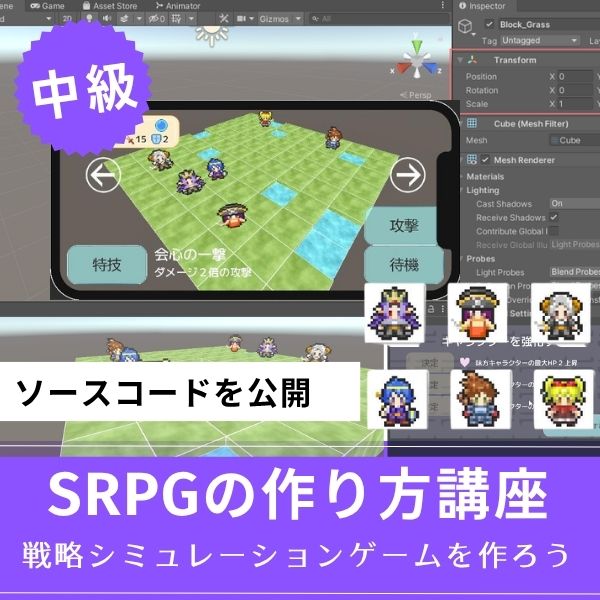
本格SRPGのAI設計・グリッドシステムを全16回で習得。制作難易度が高いSRPGを作れるスキルは、他と大きく差がつく強みになります。
初心者にもおすすめ
Unity ノンフィールドRPG
+スレスパ風JRPG講座
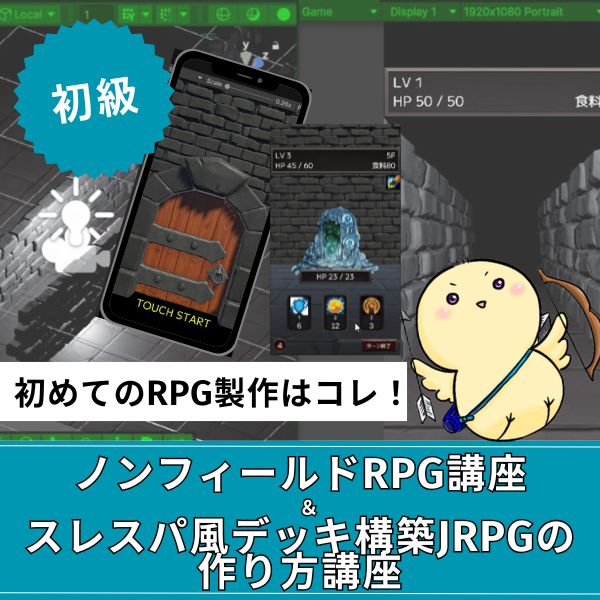
Slay the Spire風デッキ構築×JRPGをUnityで実装。Unity6・スマホ化対応で、初心者がゲーム開発の第一歩を踏み出すのに最適な講座です。
あなたのオリジナルゲーム、今年こそ完成させませんか?
RPG・アクション・ホラー…Unityで本格ゲームを作りたい人のための学習サイトです。

実際に完成するゲームを題材に、
ソースコード・素材・プロジェクト一式をすべて公開。
仕事や学校の合間の1〜2時間でも、
「写経→改造」で自分のゲームまで作りきれる環境です。
地形データの設計

地形データの設計は、システムの基礎です。
設計方法を紹介します。
地形データ構造
|
1 2 3 4 5 6 7 8 9 10 11 12 13 14 15 16 17 18 19 20 21 22 23 24 25 26 27 28 29 30 31 32 33 |
using UnityEngine; [CreateAssetMenu(fileName = "NewTerrain", menuName = "SRPG/Terrain")] public class TerrainData : ScriptableObject { [Header("基本情報")] public string terrainName; public TerrainType terrainType; [Header("戦闘効果")] public float evasionBonus = 0f; // 回避補正(%) public float accuracyBonus = 0f; // 命中補正(%) public float damageBonus = 0f; // ダメージ補正(%) [Header("移動")] public int moveCost = 1; // 移動コスト public bool isPassable = true; // 通行可能か [Header("視界")] public int visionRange = 1; // 視界範囲 public bool blocksVision = false; // 視界を遮るか } public enum TerrainType { Plain, // 平地 Grass, // 草原 Forest, // 森 Mountain,// 山 Water, // 水 Wall // 壁 } |
このコードで、地形データ構造が定義できます。
ScriptableObjectで管理すれば、デザイナーも編集できます。
地形の種類と効果
✅ 基本地形の効果
- 平地:回避+0%、移動コスト1、視界+0
- 草原:回避+5%、移動コスト1、視界+0
- 森:回避+15%、移動コスト2、視界-1
- 山:回避+10%、移動コスト3、視界+1
- 水:回避-10%、移動コスト4、視界+0
地形の種類を増やすことで、戦略性が高まります。
回避補正の実装

回避補正は、地形に応じて回避率が変化します。
実装方法を紹介します。
回避率計算システム
|
1 2 3 4 5 6 7 8 9 10 11 12 13 14 15 16 17 18 19 20 21 22 23 24 25 26 27 28 29 30 31 32 33 34 35 36 37 38 39 40 |
public class EvasionCalculator : MonoBehaviour { public float CalculateEvasionRate(Unit unit, TerrainData terrain) { // 基本回避率 float baseEvasion = unit.evasion; // 地形補正を適用 float terrainBonus = terrain.evasionBonus; float finalEvasion = baseEvasion + terrainBonus; // 0〜100%の範囲に制限 finalEvasion = Mathf.Clamp(finalEvasion, 0f, 100f); return finalEvasion; } public bool CheckEvasion(Unit attacker, Unit defender, TerrainData defenderTerrain) { float evasionRate = CalculateEvasionRate(defender, defenderTerrain); float random = Random.Range(0f, 100f); return random < evasionRate; } public void ApplyEvasion(Unit attacker, Unit defender, TerrainData defenderTerrain) { if (CheckEvasion(attacker, defender, defenderTerrain)) { Debug.Log($"{defender.unitName}は回避しました!(地形: {defenderTerrain.terrainName})"); // 回避処理 } else { // 命中処理 Debug.Log($"{attacker.unitName}の攻撃が命中しました"); } } } |
このコードで、回避補正が実装できます。
地形に応じて、回避率が変化します。
回避補正は、防御側の地形を参照します。森にいるユニットは、回避率が上がります。
移動コストの実装

移動コストは、地形に応じて移動力が消費されます。
実装方法を紹介します。
移動コスト計算システム
|
1 2 3 4 5 6 7 8 9 10 11 12 13 14 15 16 17 18 19 20 21 22 23 24 25 26 27 28 29 30 31 32 33 34 35 36 37 38 39 40 41 |
public class MovementCostCalculator : MonoBehaviour { public GridSystem gridSystem; public int CalculatePathCost(List<Vector2Int> path) { int totalCost = 0; foreach (var pos in path) { TerrainData terrain = gridSystem.GetTerrainAt(pos); if (terrain != null) { totalCost += terrain.moveCost; } } return totalCost; } public bool CanReach(Unit unit, Vector2Int targetPos) { List<Vector2Int> path = FindPath(unit.position, targetPos); if (path == null || path.Count == 0) { return false; } int pathCost = CalculatePathCost(path); return pathCost <= unit.moveRange; } public List<Vector2Int> FindPath(Vector2Int start, Vector2Int end) { // A*アルゴリズムでパスを検索 // 実装は省略 return null; } } |
このコードで、移動コスト計算が実装できます。
パスの移動コストを計算し、移動可能か判定します。
移動可能範囲の表示
|
1 2 3 4 5 6 7 8 9 10 11 12 13 14 15 16 17 18 19 20 21 22 23 24 25 26 27 28 29 30 31 32 33 34 35 36 37 38 39 40 41 |
public class MovementRangeDisplay : MonoBehaviour { public GridSystem gridSystem; public MovementCostCalculator costCalculator; public List<Vector2Int> GetMovableTiles(Unit unit) { List<Vector2Int> movableTiles = new List<Vector2Int>(); // ユニットの周囲を探索 for (int x = -unit.moveRange; x <= unit.moveRange; x++) { for (int z = -unit.moveRange; z <= unit.moveRange; z++) { Vector2Int targetPos = new Vector2Int( unit.position.x + x, unit.position.y + z ); if (costCalculator.CanReach(unit, targetPos)) { movableTiles.Add(targetPos); } } } return movableTiles; } public void HighlightMovableTiles(Unit unit) { List<Vector2Int> movableTiles = GetMovableTiles(unit); foreach (var pos in movableTiles) { // タイルをハイライト // 実装は省略 } } } |
このコードで、移動可能範囲の表示が実装できます。
ユニットの移動可能範囲を、視覚的に表示します。
視界システムの実装

視界システムは、地形に応じて視界範囲が変化します。
実装方法を紹介します。
視界計算システム
|
1 2 3 4 5 6 7 8 9 10 11 12 13 14 15 16 17 18 19 20 21 22 23 24 25 26 27 28 29 30 31 32 33 34 35 36 37 38 39 40 41 42 43 44 45 46 47 48 49 50 51 52 53 54 55 56 57 58 59 60 61 62 63 64 65 66 67 68 69 70 71 72 |
public class VisionSystem : MonoBehaviour { public GridSystem gridSystem; public int CalculateVisionRange(Unit unit, TerrainData terrain) { // 基本視界範囲 int baseVision = unit.visionRange; // 地形補正を適用 int terrainBonus = terrain.visionRange; int finalVision = baseVision + terrainBonus; // 最小値は1 finalVision = Mathf.Max(finalVision, 1); return finalVision; } public List<Vector2Int> GetVisibleTiles(Unit unit) { List<Vector2Int> visibleTiles = new List<Vector2Int>(); TerrainData terrain = gridSystem.GetTerrainAt(unit.position); int visionRange = CalculateVisionRange(unit, terrain); // 視界範囲内のタイルを取得 for (int x = -visionRange; x <= visionRange; x++) { for (int z = -visionRange; z <= visionRange; z++) { float distance = Mathf.Sqrt(x * x + z * z); if (distance <= visionRange) { Vector2Int pos = new Vector2Int(unit.position.x + x, unit.position.y + z); // 視界を遮る地形をチェック if (!IsVisionBlocked(unit.position, pos)) { visibleTiles.Add(pos); } } } } return visibleTiles; } bool IsVisionBlocked(Vector2Int from, Vector2Int to) { // パス上の地形をチェック List<Vector2Int> path = GetLinePath(from, to); foreach (var pos in path) { TerrainData terrain = gridSystem.GetTerrainAt(pos); if (terrain != null && terrain.blocksVision) { return true; } } return false; } List<Vector2Int> GetLinePath(Vector2Int from, Vector2Int to) { // ブレゼンハムのアルゴリズムで直線パスを取得 // 実装は省略 return new List<Vector2Int>(); } } |
このコードで、視界システムが実装できます。
地形に応じて、視界範囲が変化します。
実装例:完全な地形効果システム

実際に使える、完全な地形効果システムの実装例を紹介します。
|
1 2 3 4 5 6 7 8 9 10 11 12 13 14 15 16 17 18 19 20 21 22 23 24 25 26 27 28 29 30 31 32 |
using UnityEngine; public class CompleteTerrainEffectSystem : MonoBehaviour { [Header("システム")] public GridSystem gridSystem; public EvasionCalculator evasionCalculator; public MovementCostCalculator movementCalculator; public VisionSystem visionSystem; public void ApplyTerrainEffects(Unit unit) { TerrainData terrain = gridSystem.GetTerrainAt(unit.position); if (terrain == null) { return; } // 回避補正を適用 float evasionRate = evasionCalculator.CalculateEvasionRate(unit, terrain); unit.currentEvasion = evasionRate; // 視界範囲を更新 int visionRange = visionSystem.CalculateVisionRange(unit, terrain); unit.currentVisionRange = visionRange; // 移動可能範囲を更新 movementCalculator.UpdateMovableRange(unit); } } |
このコードで、完全な地形効果システムが実装できます。
回避補正、移動コスト、視界を統合しています。
よくある質問(FAQ)
シミュレーションゲームを作りたいなら!Unity入門の森のシミュレーション制作講座で本格ゲーム開発に挑戦しよう
Unity入門の森には、経営・農場・SRPGなど幅広いシミュレーションゲームを作れる講座が揃っています。作りたいジャンルや目標スキルに合わせて選んでみてください。
経営シミュレーション×農場ゲームの作り方講座【Unity6対応!AIエージェント実装まで学べる唯一の講座!】
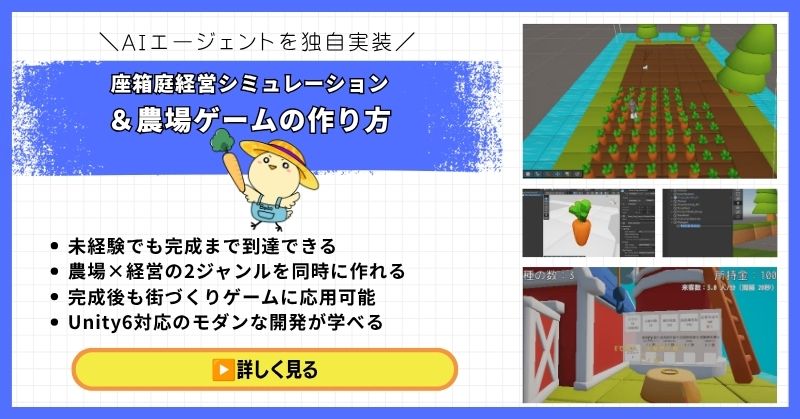
- 未経験でも完成まで到達できる丁寧な解説
- 農場×経営の2ジャンルを同時に作れる
- 賢く自律行動するAIエージェントを独自実装できる
- 完成後も街づくりゲームに応用可能な高い拡張性
- Unity6対応のモダンな開発手法が身につく
経営シミュレーション×農場ゲームの作り方講座は、シムシティ・牧場物語・どうぶつの森のようなゲームを自分で作れるようになる講座です。
農作物の育成・収穫・販売システムはもちろん、NavMeshを使ったお客さんAIの来店・購入・帰宅の自律行動や、ルールベースAIによる従業員エージェントの実装まで、本格的なゲームAI開発が学べます。
箱庭経営シミュレーションという複合的な題材を通して、Unity中級者・上級者に必要な幅広い開発スキルを一気に習得できる講座です。
Unity6対応・AIエージェント実装まで学べる
農場も経営もコレ1本で完成させよう
→ 経営シミュレーション×農場ゲーム講座を見てみる
応用・拡張性は無限大!自律行動するAIを実装して一歩先のゲーム開発へ!
UnityシミュレーションRPGの作り方講座(SRPG)【全16回!本格タクティクスSRPGをゼロから作れる!】
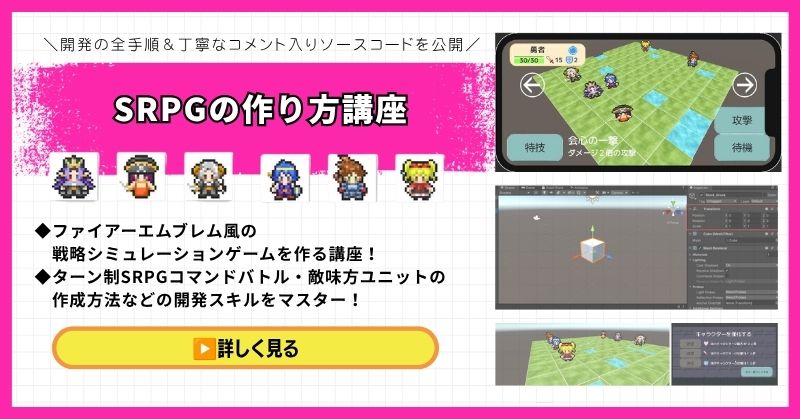
- ファイアーエムブレム風の本格タクティクスSRPGを0から開発
- 書籍でも情報が少ない戦術シミュレーションを丁寧に解説
- 難解なグリッドシステム・敵AI戦術を完全攻略できる
- 全文コメント入りソースコード付きで初心者でも理解しながら進められる
- Unity入門の森の最高傑作の一つ・解説の丁寧さはトップクラス
UnityシミュレーションRPGの作り方講座(SRPG)は、ファイアーエムブレム・タクティクスオウガ・FFタクティクスのようなターン制ストラテジーシミュレーションゲームを作るための講座です。
移動可能エリアの設定・ターン進行管理・コマンド選択型戦闘・敵AI戦術ストラテジーなど、本格SRPGに必要な機能をすべてゼロから開発します。開発難易度が高いシステムも、全文コメント入りのソースコードと丁寧な解説で確実に理解しながら進められます。
「SRPGを作れる」というスキルは希少価値が高く、Unityエンジニアとして中・上級者を目指す人に強くおすすめの一本です。
本格タクティクスSRPGをゼロから完成させる
難解なグリッドシステムと敵AIを完全攻略しよう
→ UnityシミュレーションRPG(SRPG)講座を見てみる
他では学べない当サイト最高傑作!エンジニアとして頭一つ抜ける希少スキルを今すぐ。
Unity ノンフィールドRPG+スレスパ風JRPG講座【Unity6対応!デッキ構築×JRPGをスマホ向けに作れる!】
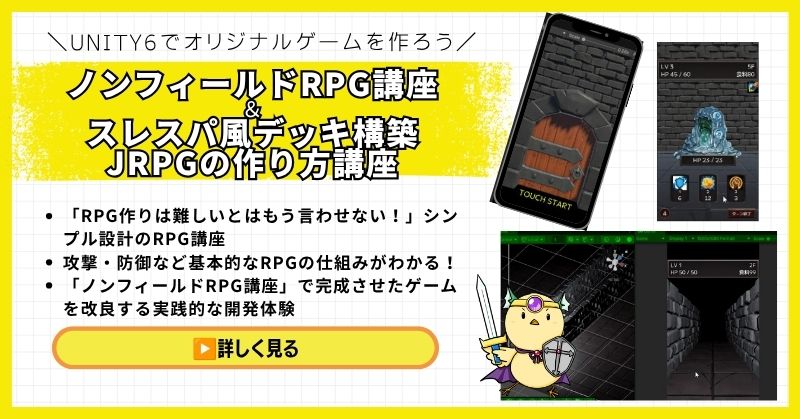
- Unity6対応・スマホ化対応で最新環境のゲーム開発が学べる
- Slay the Spire風のデッキ構築システム×JRPGの組み合わせを実装
- 初心者でも取り組みやすい丁寧な解説構成
- ノンフィールドRPGとデッキ構築JRPGの2つを合わせて学ぶのがおすすめ
Unity ノンフィールドRPGの作り方講座+Slay the Spire風デッキ構築JRPGの作り方講座は、今もっともトレンドのデッキ構築型ゲームシステムをJRPGと組み合わせて実装する方法を学べる講座です。
Unity6対応・スマホ化対応の最新カリキュラムで、デッキ構築の核となるシステムをしっかり習得できます。シミュレーション系の設計思想とも親和性が高く、ゲーム開発の幅を広げたい方にもおすすめです。
「Slay the Spireみたいなゲームを自分でも作ってみたい!」という人の最初の一歩として最適な講座です。
Unity6対応・スマホ化対応の最新カリキュラム
トレンドのデッキ構築×JRPGを最速で実装しよう
→ Slay the Spire風デッキ構築JRPG講座を見てみる
SLGの設計思想とも親和性抜群!トレンドシステムを取り入れて開発の幅を広げよう!
まとめ
地形効果は、データテーブルで管理しましょう。
これにより、調整が簡単になり、拡張もしやすくなります。
✅ 今日から始める3ステップ
- ステップ1:地形データ構造を設計する(所要2時間)
- ステップ2:回避補正システムを実装する(所要2時間)
- ステップ3:移動コストシステムを実装する(所要3時間)
本格的にUnityを学びたい方は、Unity入門の森で実践的なスキルを身につけましょう。
あなたのペースで、少しずつ進めていけば大丈夫です。
あなたのオリジナルゲーム、今年こそ完成させませんか?
RPG・アクション・ホラー…Unityで本格ゲームを作りたい人のための学習サイトです。
実際に完成するゲームを題材に、
ソースコード・素材・プロジェクト一式をすべて公開。
仕事や学校の合間の1〜2時間でも、
「写経→改造」で自分のゲームまで作りきれる環境です。



コメント